Linux file permissions for dummies: chmod, chown, and access control
You’ve probably typed a command in Linux and gotten the dreaded “Permission denied” message. That’s you meeting Linux file permissions. They’re one of the first real hurdles every new Linux user runs into – and, frankly, one of the most important things to understand if you want to actually use Linux instead of just clicking around it.
This guide will take you through Linux file permissions from the ground up – what they are, how to read them, and how to change them using chmod and chown. No jargon dumps. No pretending you know what a superuser is. Just a clear practical explanation you can actually use the next time you open a terminal.
What Are File Permissions in Linux?
File permissions in Linux are set of rules to set access rights for files and directories. It defines who can read, write or execute. In Linux, every file and directory has an owner and a group associated with it and permissions associated with it. This isn’t an accident – Linux was designed from the ground up as a multi-user OS, which means that multiple people (or multiple processes) can use the same machine without stomping on each other’s files.
So when you look at the Linux file permissions of any file, you are really asking three questions:
- Who is the owner of this file?
- What can the owner do with it?
- What can everybody else do with it?
Once you learn how to answer those three questions the rest of the system starts to make sense quickly.
Linux File Permissions: Why They Matter for Security
This isn’t some technical nicety – Linux file permissions are one of the core building blocks of Linux security. Misconfigured permission allows an attacker to read a password file, overwrite a configuration file, or run a script they should not have access to. On the other hand, too restrictive permissions can break applications and prevent legitimate users from accessing them.
This is the exact reason why Linux file permissions keep coming up in system administration, DevOps and cybersecurity work. If you are studying for RHCSA, RHCE or working towards a role in penetration testing, understanding access control is not optional, it’s foundational. This is a topic covered by every hardening checklist, by every audit, by every privilege escalation technique in ethical hacking.
Understanding Types of Access Permissions: Read Write Run
Linux file permissions are based on three basic permission types:
- Read (r) — allows you to view the contents of a file, or the contents of a directory.
- Write (w) permission to change or delete the contents of a file or to add or remove files from a directory.
- Execute (x) — run a file as a program or script, or enter (“cd” into) a directory.
That last point catches a lot of newbies out: execute permission on a directory doesn’t mean “run the folder” – it means you have permission to enter it. You can’t cd into a directory if you don’t have execute permission on it, even if you technically have read permission.
We can allow or deny each of the three permission types to three different sets of users. This leads to levels of ownership.
Three Permissions Levels: User, Group, and Others
In Linux, you assign permissions to each file in three categories:
- User (u) — the person who owns the file, typically the creator.
- Group (g) – a set of users having the same access at the group level, usually determined by an administrator.
- Others (o) – everyone else on the system, not the owner or in the owning group.
This three tier structure is what lets Linux file permissions run everything from personal laptops to massive multi-user servers. You can completely control a file, give your team read access, and block everyone else — all with a single permission setting.
Reading Permission Strings (ls -l Output)
When you run ls -l in a Linux terminal you will see something like this next to each file:
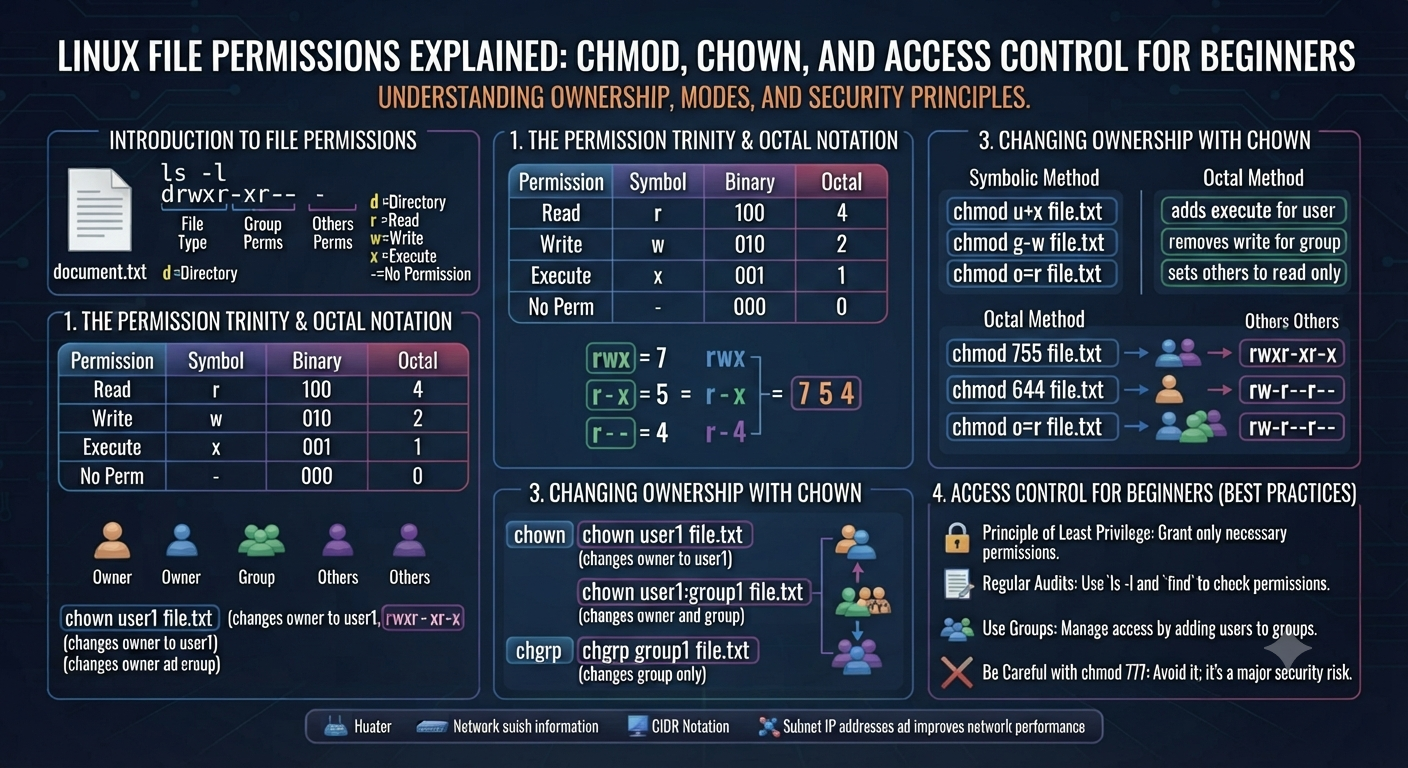
The string at the beginning — -rwxr-xr– — is the permission string. Once you understand how to read the permission string, Linux file permissions are easy to understand.
Here’s the breakdown.
- The first character indicates the type of file (- for a normal file, d for a directory, l for a symbolic link)
- The next three characters (rwx) show the owner’s permissions.
- The next three (r-x) are the group permissions.
- The final three (r–) show permissions for others.
In this example: the owner (jason) has read, write and execute permissions on the file The group (developers) can read and run it, but they can’t modify it. Everyone else can just read it. That’s a ten character full permission picture – which is exactly why understanding this string is one of the most useful Linux skills you can develop early on.
How to Change Linux File Permissions with chmod
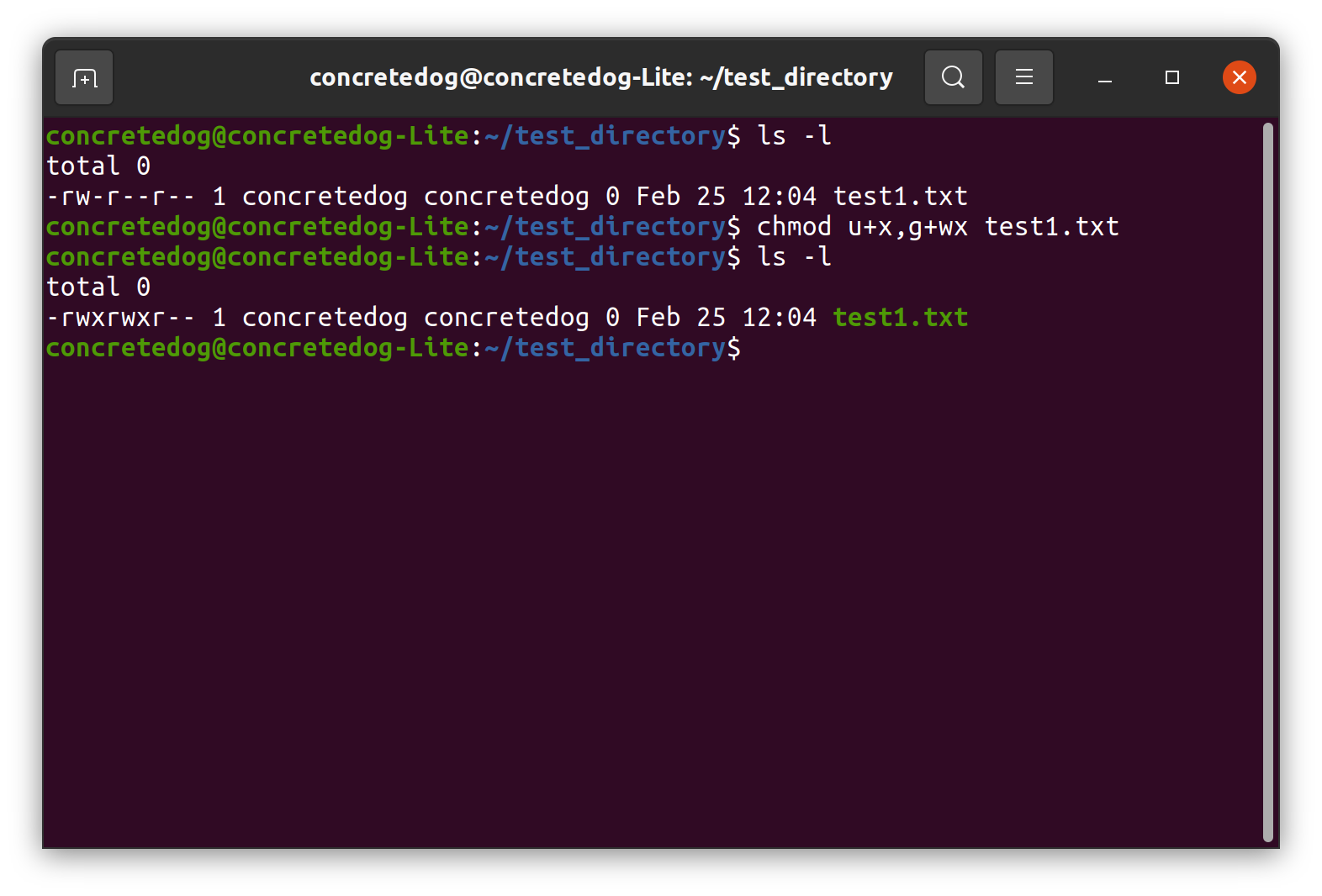
To actually change file permissions in Linux you use the chmod command, which stands for change mode. It can be used in two common ways: symbolic mode and numeric (octal) mode.
Symbolic Form
The symbolic mode uses letters to add, remove or set permissions:
This approach is intuitive in a way, because it is almost plain english: user, group, others or all, plus, minus or equals, plus the permission letter.
Octal Mode
Numeric mode is faster once you get used to it, and it is the format you will see all the time in tutorials, scripts, and real world documentation. Each permission has a numeric value:
- Read = 4
- Write=2
- Execute = 1
You add these values together for each level of ownership. So:
That means:
- Owner: 7 (4 + 2 + 1 = read, write, execute)
- Group: 5 (4+1=read, execute)
- Other: 4 (read-only)
Once you get used to the math, setting Linux file permissions this way becomes second nature. Here are some combinations you’ll see all the time:
| Octal Code | Description |
|---|---|
| 755 | Owner: full access Group/Others: read + execute (common for scripts) |
| 644 | Owner: read + write; Group/Others: read only (common for regular files) |
| 700 | Owner: full access Group/Others: no access at all |
| 777 | Everyone: full access (rarely recommended – see below) |
With the -R flag, you can also apply changes recursively to each file within a directory:
This is very common practice in web server setups, but it should be used carefully. Applying sweeping linux file permissions to an entire directory tree can inadvertently expose files that should be restricted.
How to Use chown to Change Ownership of Files
chmod changes what someone can do with a file. chown (change owner) changes who owns it. Ownership and permissions are two sides of the same coin, you can’t really have a good grasp of Linux file permissions without knowing both.
Basic syntax is:
To change both the user and group owner simultaneously:
To recursively change ownership of an entire directory:
You will usually need sudo to run chown unless you already own the file because changing ownership affects system level access control and is not something that every user should be able to do freely.
Special Permissions: SUID, SGID & Sticky Bits
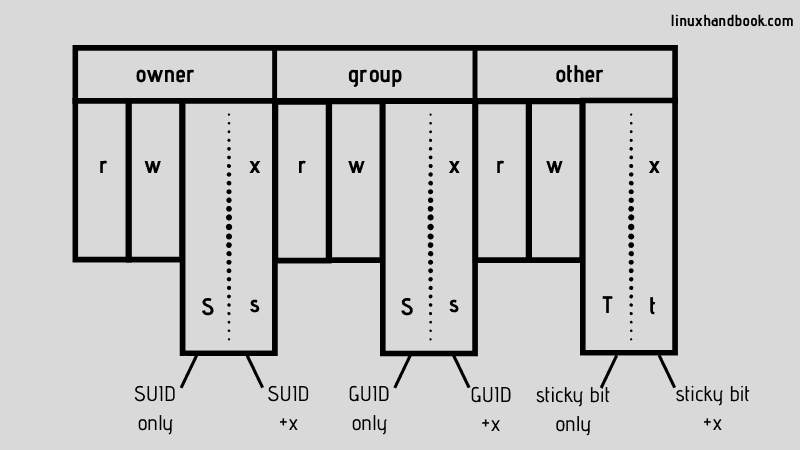
In addition to the standard read/write/execute model, Linux file permissions have some special cases worth knowing, especially if you’re heading into system administration or security work:
- SUID (Set User ID) — enables a program to run with the permissions of the program owner, instead of the user executing the program. Common in tools such as passwd.
- SGID (Set Group ID) is the similar concept at the group level, often used to ensure that new files in a shared directory automatically get the group assigned.
- Sticky Bit – most often used on shared directories (like /tmp), it indicates that only the owner of a file can delete or rename it, even if other people have write access to the directory.
Now these are things that will not need to be mastered by beginners immediately but knowing that they exist helps to explain some permission behavior that you will eventually run into.
Newbies Common Mistakes With Linux File Permissions
A couple of habits to avoid early on:
- Shortcut with the use of chmod 777. It “fixes” permission errors instantly. But it removes all access control too, which is a real security risk on any shared or internet-facing system.
- Directory execute permission overlooked. If you can’t cd into a folder, check the execute bit before you assume something else is broken.
- Chmod -R without thinking it through. Recursive changes can silently break permissions on files that needed to be kept restricted.
- Mixing up chmod and chown. One changes the access rules, the other changes who the rules apply to. One of the most common beginner mistakes is to confuse the two.
Linux File Permission FAQ
1. What do r, w, x mean in Linux file permissions?
They mean read, write and execute. Read means you can view the content. Write means you can change or delete it. Execute means you can run a file or enter a directory.
2. What is the difference between chmod and chown?
chmod changes the permissions on a file (read, write or execute), chown changes the owner of the file. Together they jointly have complete control over Linux file permissions.
3. How to give full permission to a file in Linux?
chmod 777 filename To give read, write and execute to everyone
chmod 700 filename To give full access to the owner only. The second is almost always the safer bet.
4. What is the meaning of chmod 777?
This means that every user – owner, group, and others – has full read, write and execute access to that file. Useful for debugging, but not generally recommended for production systems due to security risk.
5. Can normal users change file permissions in Linux?
Yes but only for files they own. Usually you need sudo or root privileges to change permissions or ownership on files owned by other users.
Summary
Once you understand how Linux file permissions really work — the read/write/execute model, the user/group/others structure, and the difference between chmod and chown — the whole permission system ceases to be a mystery. Then it’s just one more tool in your daily toolbox, like cd or ls.
Nor is this an academic subject. Whether you are running a personal server, studying for RHCSA/RHCE or moving into cyber security and penetration testing, learning about Linux file permissions and access control is one of the most useful skills you can pick up early on your Linux journey.
Want to practice these commands in real lab environments, rather than just reading about them? Pentest Craft’s RHCSA and Linux courses walk you through permissions, ownership, and access control hands-on — just like you’d use them on a real production system.