Advance Cloude Security

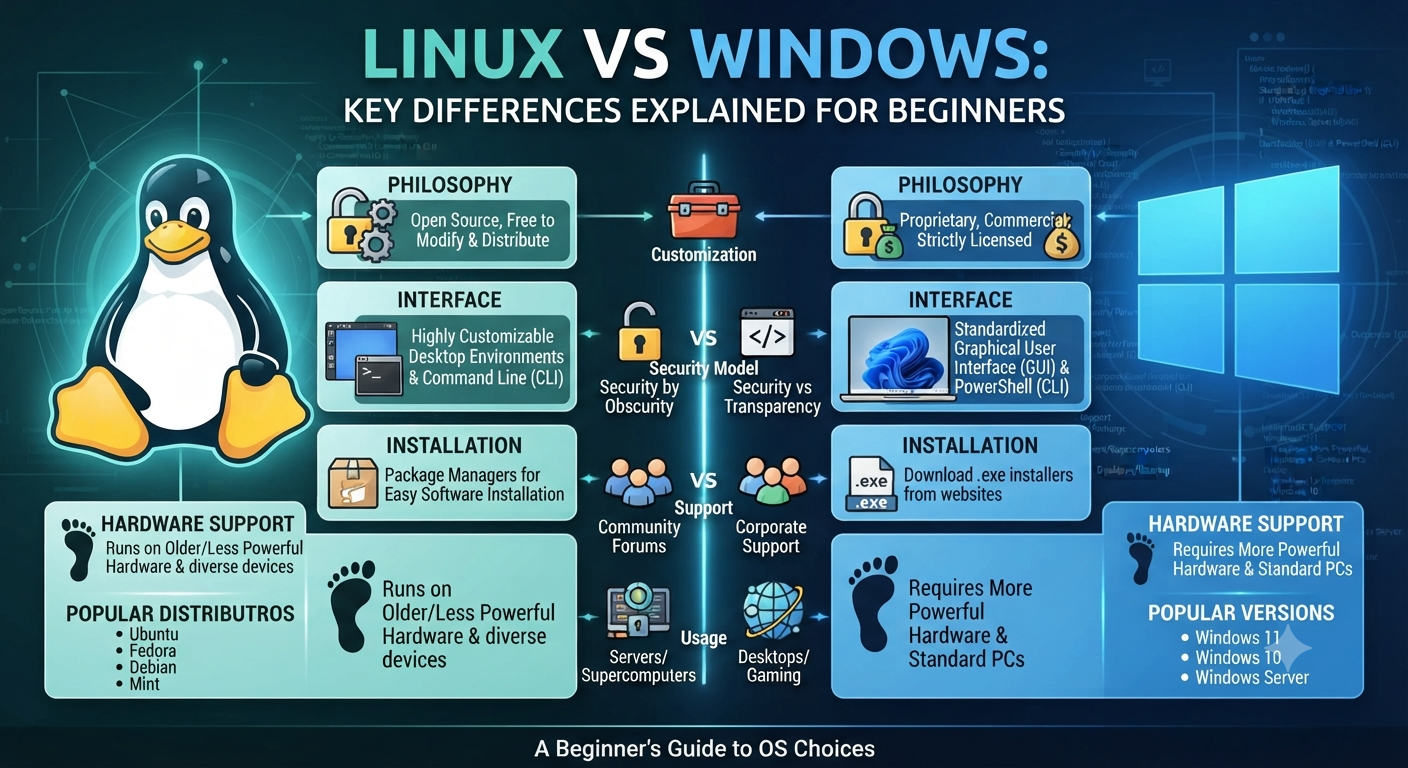
Linux Security Best Practices for Beginners

Linux Security Best Practices: Complete Guide to Hardening for Newbies Linux powers a significant portion of the world’s digital infrastructure. It runs everything from personal computers and software development workstations to enterprise databases, cloud servers, web hosting platforms, and containerized applications. Its stability, flexibility, and open-source nature have made Linux one of the most trusted operating systems for individuals and organizations alike. Although Linux is widely recognized for its strong security model, it is important to understand that no operating system is completely secure by default. Most Linux distributions are designed with usability and compatibility in mind, allowing users to install applications and services with minimal effort. However, these default configurations may not provide the highest level of protection against modern cyber threats. If you’re new to Linux security, the number of security tools, commands, and configurations may seem overwhelming. Fortunately, becoming proficient at Linux hardening doesn’t require years of experience. By following a structured approach and implementing proven security best practices, you can significantly reduce vulnerabilities, minimize your attack surface, and build a more resilient Linux environment. This guide covers some of the most essential Linux hardening practices that every beginner should implement. 1. Update your system The simplest and most effective security habit is to keep software updated. Software bugs are regularly discovered, and vendors promptly issue patches to address them. If you don’t update, you leave known vulnerabilities open to malicious actors scanning the internet for easy pickings. Many cyberattacks succeed simply because organizations continue running outdated software with publicly known vulnerabilities. Attackers constantly scan internet-connected systems looking for servers that have not installed the latest security patches. Keeping your operating system updated is therefore one of the easiest ways to prevent compromise. Package Management Run commands on Debian/Ubuntu based systems to update software packages and refresh repositories: sudo apt update && sudo apt upgrade -y For Red Hat-based distributions such as CentOS, Rocky Linux, AlmaLinux, or Fedora, you can use: sudo dnf update -y or sudo yum update -y Kernel Patches The operating system kernel often has some critical security vulnerabilities hidden in it. If you need high availability, look into live-patching solutions or make sure your system kernel is regularly upgraded. A scheduled maintenance routine that includes kernel updates ensures your system remains protected against newly discovered exploits while maintaining long-term stability. 2. Principle of Least Privilege and Master User Account Management The Principle of Least Privilege is one of the key tenets of computer security. It states that users and processes should be granted the minimum permissions necessary to perform their designated functions. This principle limits the damage that can occur if an account becomes compromised. When users only have the permissions they require, attackers have fewer opportunities to move laterally through the system or gain administrative control. Do not use the root account for daily use The root account must never be used for regular scripts, browsing and everyday work. Instead, create a standard user account and use sudo (Superuser DO) only when you absolutely need to perform administrative actions. Using sudo creates accountability because administrative commands are logged, making it easier to audit system activity later. Periodically check the existing user accounts on your system. Look at /etc/passwd. Delete any inactive accounts, service users who are no longer active or any remaining test profiles. It is also good practice to review group memberships regularly to ensure users have only the permissions required for their current responsibilities. 3. Implement robust authentication and password policies Brute-force attacks are meant to exploit credentials that are weak and easily guessed. You protect yourself from automated script-based hacks by setting tight standards of access at your entry points. Weak passwords remain one of the leading causes of unauthorized access. Attackers often use automated password dictionaries capable of attempting thousands of login combinations every minute. Complexity Standards Passwords must be 12 characters or longer and contain a good mix of uppercase and lowercase letters, numbers, and special symbols. Instead of using simple words or predictable sequences, users should consider long passphrases that are easier to remember but much harder to crack. Examples include combinations of unrelated words with numbers and symbols inserted naturally. Use Multi-Factor Authentication (MFA) Whenever you can, use MFA or Pluggable Authentication Modules (PAM) to add an extra layer of security on top of standard text passwords. Even if an attacker manages to steal a password, MFA greatly reduces the likelihood of unauthorized access by requiring an additional verification method such as a mobile authentication application or hardware security key. 4. Secure Shell (SSH) Access SSH is the first port of call for anyone who is tasked with managing a remote Linux server. Unfortunately, it also happens to be a prime target for malicious scanners looking for misconfigured services. Internet-connected servers receive thousands of automated SSH login attempts every day. Proper SSH hardening dramatically reduces the likelihood of successful attacks. Turn off SSH root login Turn off SSH root login, so an attacker can’t log in to the highest-privileged account directly from the network. Edit the SSH configuration file (/etc/ssh/sshd_config), and change the following: PermitRootLogin no This forces attackers to compromise a standard user account before attempting privilege escalation. Transition to SSH key pairs This includes Ed25519 or 2048 bit RSA keys. Cryptographic key pairs are much better than old style passwords. After you’ve successfully deployed and tested your SSH keys, disable password-based authentication entirely. SSH keys are resistant to brute-force attacks because authentication depends on cryptographic algorithms rather than human-generated passwords. Change the Default Ports and Use Fail2ban It’s a good idea to change the default SSH port (port 22) to minimize the amount of log spam produced by automated botnets. The installation of tools such as Fail2ban can also be effective in automatically blocking IP addresses that show malicious brute-force behavior. Fail2ban continuously monitors authentication logs and temporarily blocks suspicious IP addresses after repeated failed login attempts, providing another important layer of defense. 5. Set up a strict firewall policy A firewall
Advance Cloude Security

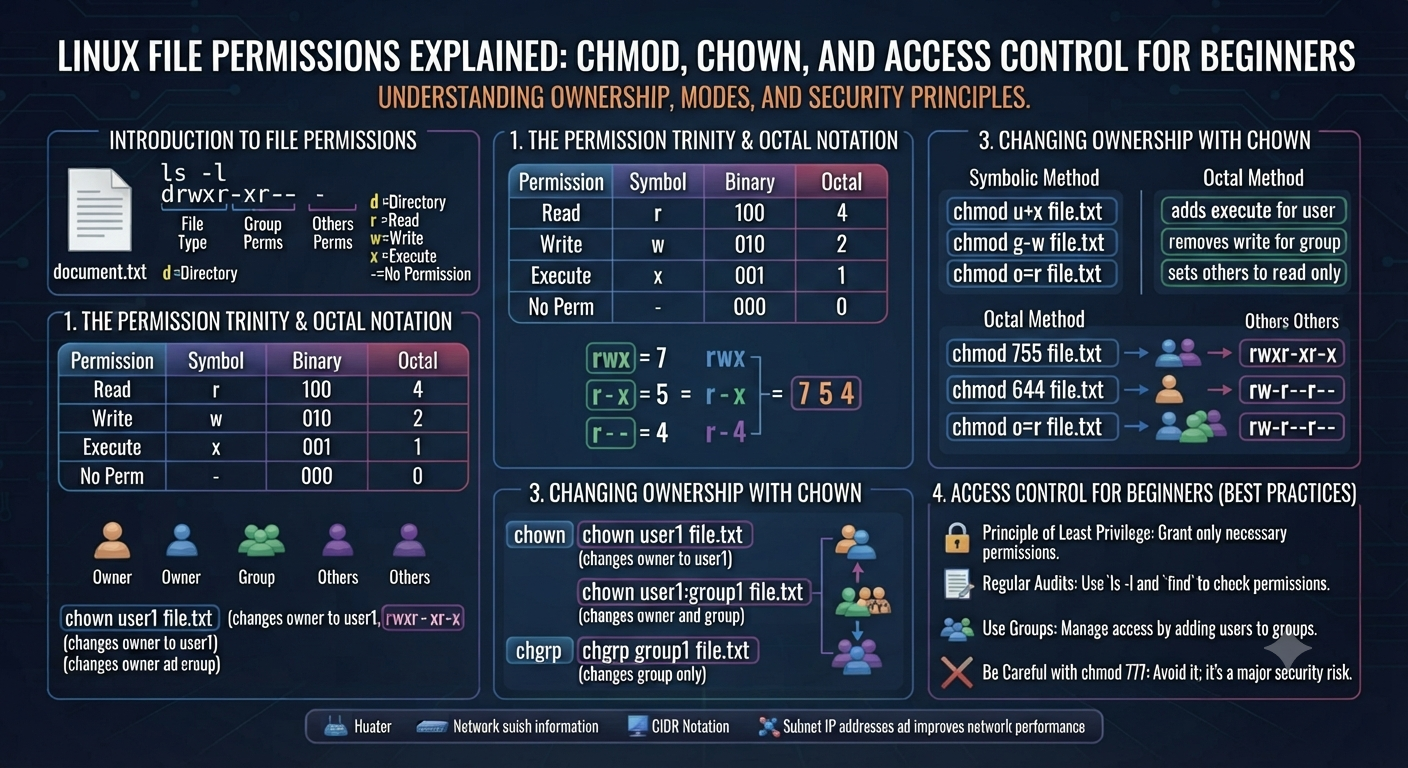
Cloud Security Explained: Protecting Data in the Cloud

Cloud Security: The Ultimate Guide to Protecting Data in the Cloud Introduction to Cloud Security: Data Protection in the Cloud   The advent of cloud computing has revolutionized the ways in which organizations and consumers store, process, and retrieve data. Instead of buying physical servers at their offices or data centers, organizations can use cloud platforms to scale their infrastructure, run applications, store files and run databases with a couple of clicks. Its versatility has sped up the digital transformation of almost every industry, from banking to healthcare to education to e-commerce. With sensitive data moving into the cloud, protecting such data becomes increasing important. Cybercriminals are always on the lookout for vulnerabilities they can exploit to steal sensitive information, disrupt business processes or gain unauthorized access to cloud resources. One security breach, such as a weak password or misconfigured storage bucket, can result in the loss of thousands of customer records, and significant financial and reputational damage. Cloud Security is the set of technology, policies, procedures and best practices used to protect systems, applications, and data that reside in the cloud. This allows organizations to enjoy the benefits of cloud computing without compromising on availability, integrity or confidentiality. In this guide, we will delve into the fundamentals of cloud security in detail, offering practical advice and highlighting common threats to assist individuals and organizations in safeguarding their cloud environments. What Is Security of the Cloud?   Cloud security is a set of technologies and protocols that are used to secure cloud-based data, applications and infrastructure from cyber-attacks. It is a blend of technical controls, operational procedures and governance policies designed to protect business continuity and mitigate security risks. Unlike traditional IT environments, cloud security follows a shared responsibility model. The cloud service provider secures the infrastructure underneath but the customer is responsible for securing their own applications, user accounts, data and configurations. A company might, for instance, keep sensitive customer data on a cloud platform. The provider is responsible for the security of the network and physical servers that support the service. The organization is responsible, however, for making sure that sensitive data is encrypted, access privileges are appropriate, and user activity is monitored. The Significance of Cloud Security     Organizations are moving to cloud computing to save on costs and for flexibility and scalability. But these benefits also bring new security problems. What if a company doesn’t have enough security? Data leaks Burglary by unlawful entry Amount of financial loss Outage of Service Sanctions for regulatory violations Distrust the customers A good cloud security strategy helps organizations shrink their attack surface, quickly spot threats, and maintain compliance with industry regulations. What is the Shared Responsibility Model?     Knowing who is responsible for what is one of the most important aspects of cloud security. Cloud Providers’ Responsibilities The majority of cloud providers implement security protocols such as: The data center’s physical location The networking platform Hard Disk Drives Virtualization platforms Cloud services that are core Customer Responsibilities Customers are usually responsible for: User account management Identity and Access Management (IDAM) Encryption of data during OS installation Application security Surveillance security measures Disaster recovery and backup “The number one reason for cloud security incidents is the lack of clear roles and responsibilities.” Cloud Security Risks     Many cyber threats are amenable to cloud environments. Understanding those risks is the first step toward building good defenses. Loss of Data A data breach is when confidential information is accessed without authorisation. Attackers may use stolen credentials, weak passwords or misconfigured cloud storage to access sensitive data. For example: Consider an online retailer that accidentally exposes a cloud storage bucket to the public. Anyone with the right URL could see customers’ names, e-mail addresses and payment details. Cloud Resources Misconfiguration Misconfiguration is often the bane of cloud security. Some examples: Publicly accessible databases Storage buckets accessible to the public No limitations on firewall policies User rights are too lenient Even the largest of organizations have had security issues due to simple configuration mistakes. Weaknesses in Identity and Access Management (IAM) Attacker can exploit compromised accounts due to insufficient access control. Common issues: Weak Passwords Common administrator accounts Multi-factor authentication not supported Too much rights Users can be confident that they will only be granted the minimum access necessary to do their jobs. This is the least authority principle. Internal Threats External attackers don’t cause all security incidents. Employees, contractors or partners with the required access could unwittingly or maliciously disclose sensitive information. Consistent monitoring and tight access controls minimize insider threats. Ransomware and Malware     Attackers can use malware to gain control over systems connected to the cloud. Ransomware can encrypt business data and only restore access after payment. Having secure backups and endpoint protection greatly reduces the severity of ransomware attacks. Account Take Overs Credential stuffing, phishing, and password reuse are the most frequent ways cybercriminals attempt to compromise cloud accounts. Actions Taken by the Attacker on Entry: Theft of sensitive information Further assaults are launched Build hardware for crypto currency mining Delete the backups Conceal the admin accounts One of the best defenses against account hijacking is multi-factor authentication. Features of Cloud Security     “A good cloud security solution is not one product, it’s a combination of many layers of protection.” Identity and Access Mgmt (IAM) IAM provides users with the authority to access cloud resources and perform actions. The main characteristics are as follows: Username Role-based access control (RBAC) Authorization Management Multi-factor authentication (MFA) Single sign-on (SSO) Data Encryption Encryption is the process of securing data so that it cannot be read by those who do not have the correct encryption key. Organizations should implement encryption for: Data at rest Data in transit Files that are backups Databases By encrypting data, you greatly reduce the amount of data that can be exposed in a breach of a storage system. Security Network “Security controls like protection and segmentation are a must to secure cloud networks.”

Advance Cloude Security

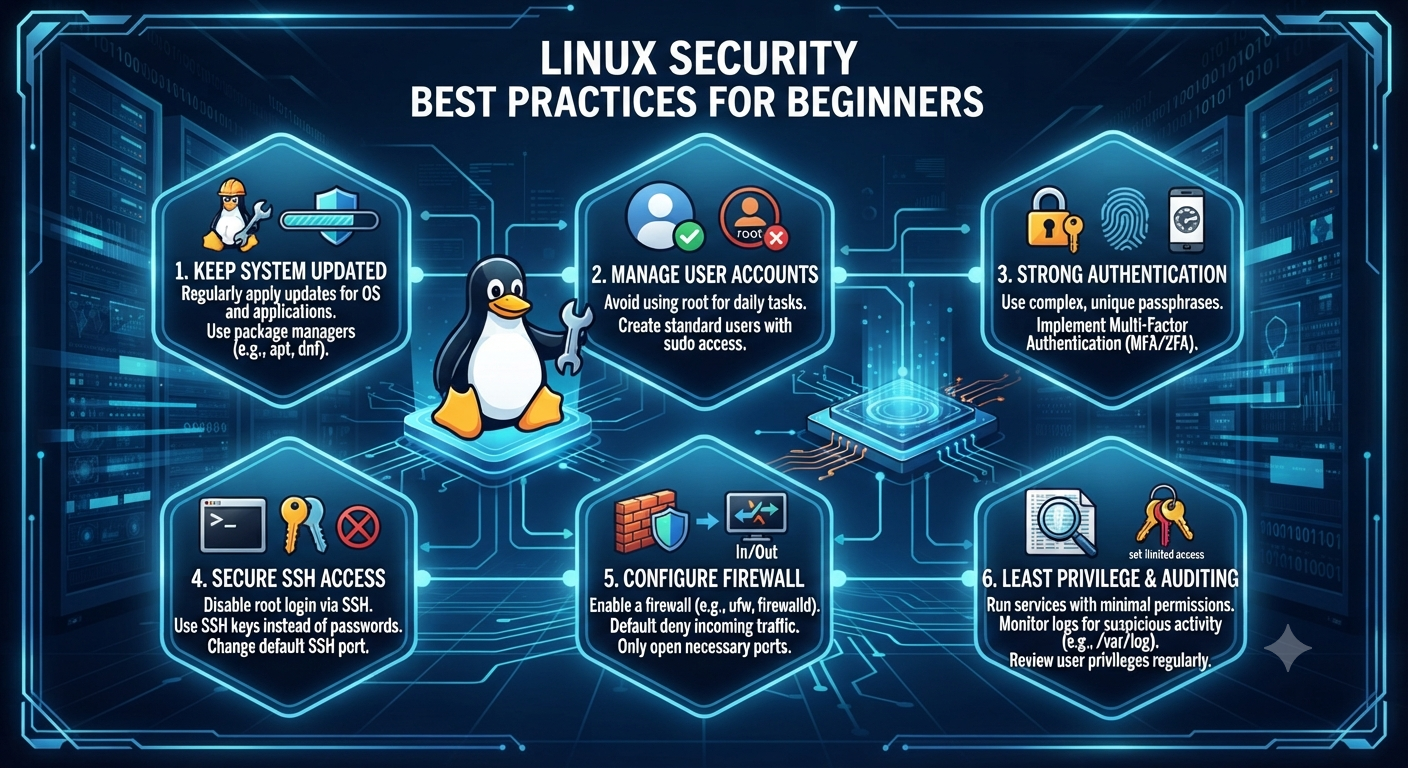
Linux vs Windows: Key Differences Explained for Beginners

Linux vs Windows – The Differences Explained for Newbies   For those of you who have spent your whole computing life within Windows, hearing people talk about Linux can sound like they are talking about a whole different kind of tech. It is not. But the difference is real and matters if you are thinking of switching, learning IT or even just curious why so many servers, developers and security professionals prefer Linux. This guide will compare Linux and Windows in plain English. We’ll look at what each operating system actually is, compare costs, security, customization, and software support, and help you decide which one makes sense for what you want to do. What is Linux and What is Windows? But before we start a feature-by-feature comparison of Linux vs Windows, it helps to know what each one actually is. Windows is a proprietary operating system developed and owned by Microsoft. It’s meant to be consistent, easy to use and tightly integrated with Microsoft’s own software ecosystem — Office, OneDrive, Teams, etc. Most consumer desktop and laptop PCs are shipped with Windows pre-installed, which is a huge part of the reason it’s the most popular desktop OS in the world. But Linux isn’t a single operating system made by a single company. It’s an open-source kernel that is used to build many different operating systems — called distributions, or “distros”. All four distributions are built on the same Linux kernel, but they differ in appearance, tools and intended audience. One of the first things that people trip over in a Linux vs Windows discussion is that Windows is one product, whereas Linux is really a family of related systems. Free vs. Paid Licensing Cost   Cost is one of the most immediate differences in the Linux vs Windows comparison. Windows, whether you purchase it separately or bundled with a new computer, requires a paid license. For example, Windows Pro or Windows Server are editions with more features, and businesses often pay extra licensing fees for these. Linux, on the other hand, is free and open source. The most common distributions are free to download, install and use, including for commercial purposes. This is a big reason why Linux is so popular in server environments, cloud computing, and any situation where someone is deploying on a budget and the licensing costs can add up quick across hundreds or thousands of machines. That said, “free” doesn’t automatically mean “better for everyone.” Free also means community-driven support in many cases, not a dedicated customer service line — something worth factoring in if you’re used to Microsoft’s support structure. Open Source vs. Proprietary Why It Matters This is where the Linux vs Windows discussion gets a bit more philosophical, but it has real world implications. Linux is open source, which means anyone can look at the source code, change it, or redistribute it. This transparency is a big part of why security professionals and developers trust it; vulnerabilities can be discovered and patched by a global community, not just a single company’s internal team. Windows is a proprietary operating system, which means the source code is closed and controlled completely by Microsoft. Updates, patches and features come on Microsoft’s schedule, and users have far less visibility into how the system works under the hood. Neither is “more secure” by default, and in all cases, but that openness is exactly why Linux is the default choice in cybersecurity, penetration testing and server infrastructure — fields where knowing and controlling exactly what a system is doing really matters. User interface and User Experience   This is the side of the Linux vs Windows debate that most beginners care about most of the time. Windows is built on one graphical interface that is consistent and that most people know already from years of use. Installing software, settings, file management. All are patterns most users already know intuitively. In this respect the various Linux distributions are more varied. Some, like Ubuntu or Linux Mint, offer graphical interfaces very similar to Windows or macOS, so the transition is fairly smooth. Others, such as Kali Linux, designed for server or security work, are heavily command-line driven and assume the user is perfectly comfortable working without a graphical interface. This is really one of the biggest adjustment points people run into: Windows assumes you’re mostly clicking through menus, while many Linux environments expect at least some comfort in typing commands directly. It’s not that Linux is harder, it’s that it gives you more power right away, which has a bit of a steeper initial learning curve. Software & application compatibility The availability of software is a practical and often decisive factor in the decision between Linux and Windows. Windows has the largest library of consumer and business software available anywhere. Almost every commercial application, game and proprietary tool is designed with Windows compatibility in mind. Linux has great support for open-source software, development tools, and server applications, but mainstream consumer software (some games, some proprietary business applications, and certain creative tools) is often not available natively, though compatibility layers and alternatives exist for many use cases. This is often the main reason casual users are hesitant to fully switch to Linux even though they are attracted to its other benefits. Security Aspects One of the most frequently mentioned differences in the Linux vs Windows comparison is security and for good reason. Windows has the biggest desktop user base and so is the most targeted platform for malware and attacks, simply because of scale. So, in the past, Linux has been a less attractive target for the sort of malware that plagues everyday Windows users. This is because of its smaller desktop market share, as well as its permission structure and open source transparency. This isn’t to say Linux is immune to security concerns — far from it — but the way it’s built, particularly with user permissions and system access controls, gives admins finer-grained control over what can and can’t

Advance Cloude Security

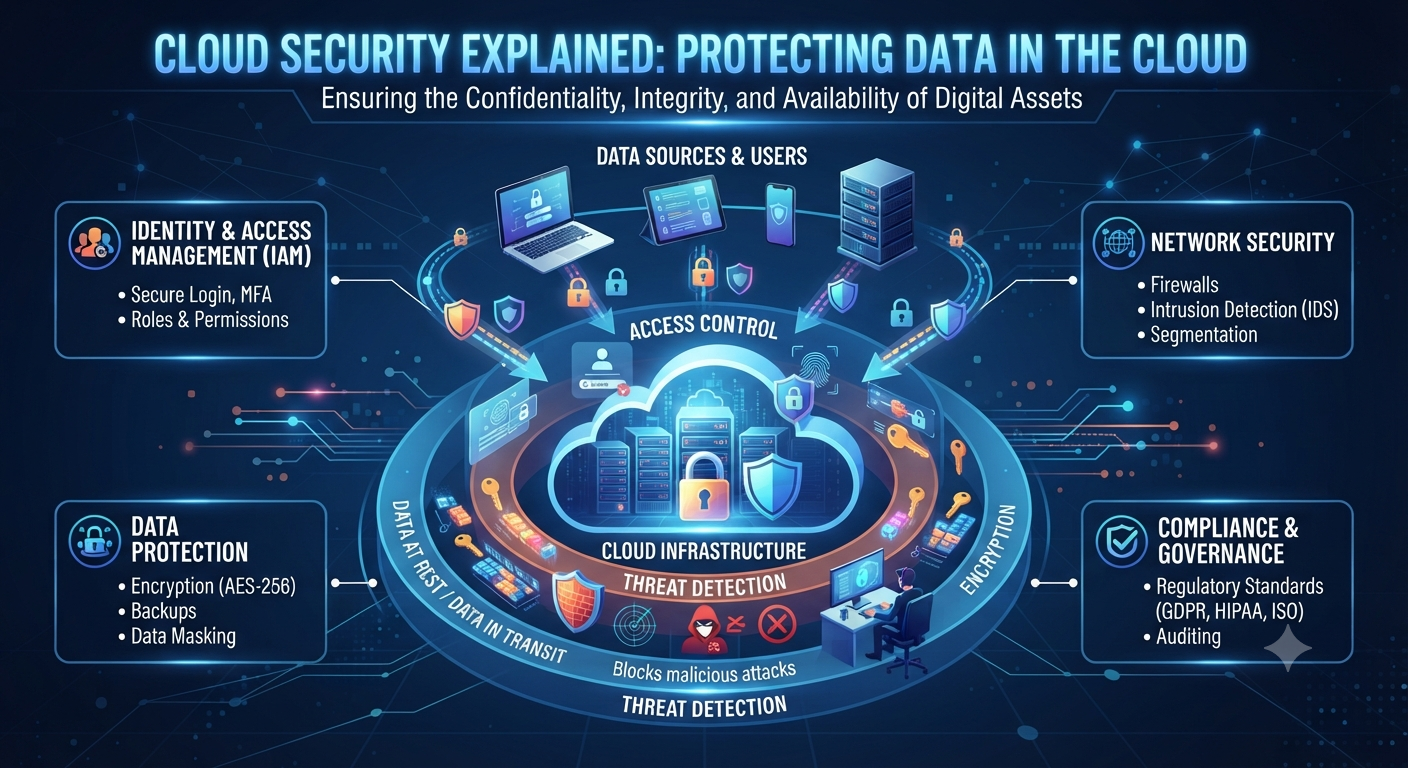
Linux File Permissions Explained: chmod, chown, and Access Control for Beginners

Linux file permissions for dummies: chmod, chown, and access control   You’ve probably typed a command in Linux and gotten the dreaded “Permission denied” message. That’s you meeting Linux file permissions. They’re one of the first real hurdles every new Linux user runs into – and, frankly, one of the most important things to understand if you want to actually use Linux instead of just clicking around it. This guide will take you through Linux file permissions from the ground up – what they are, how to read them, and how to change them using chmod and chown. No jargon dumps. No pretending you know what a superuser is. Just a clear practical explanation you can actually use the next time you open a terminal. What Are File Permissions in Linux? File permissions in Linux are set of rules to set access rights for files and directories. It defines who can read, write or execute. In Linux, every file and directory has an owner and a group associated with it and permissions associated with it. This isn’t an accident – Linux was designed from the ground up as a multi-user OS, which means that multiple people (or multiple processes) can use the same machine without stomping on each other’s files. So when you look at the Linux file permissions of any file, you are really asking three questions: Who is the owner of this file? What can the owner do with it? What can everybody else do with it? Once you learn how to answer those three questions the rest of the system starts to make sense quickly. Linux File Permissions: Why They Matter for Security   This isn’t some technical nicety – Linux file permissions are one of the core building blocks of Linux security. Misconfigured permission allows an attacker to read a password file, overwrite a configuration file, or run a script they should not have access to. On the other hand, too restrictive permissions can break applications and prevent legitimate users from accessing them. This is the exact reason why Linux file permissions keep coming up in system administration, DevOps and cybersecurity work. If you are studying for RHCSA, RHCE or working towards a role in penetration testing, understanding access control is not optional, it’s foundational. This is a topic covered by every hardening checklist, by every audit, by every privilege escalation technique in ethical hacking. Understanding Types of Access Permissions: Read Write Run Linux file permissions are based on three basic permission types: Read (r) — allows you to view the contents of a file, or the contents of a directory. Write (w) permission to change or delete the contents of a file or to add or remove files from a directory. Execute (x) — run a file as a program or script, or enter (“cd” into) a directory. That last point catches a lot of newbies out: execute permission on a directory doesn’t mean “run the folder” – it means you have permission to enter it. You can’t cd into a directory if you don’t have execute permission on it, even if you technically have read permission. We can allow or deny each of the three permission types to three different sets of users. This leads to levels of ownership. Three Permissions Levels: User, Group, and Others In Linux, you assign permissions to each file in three categories: User (u) — the person who owns the file, typically the creator. Group (g) – a set of users having the same access at the group level, usually determined by an administrator. Others (o) – everyone else on the system, not the owner or in the owning group. This three tier structure is what lets Linux file permissions run everything from personal laptops to massive multi-user servers. You can completely control a file, give your team read access, and block everyone else — all with a single permission setting. Reading Permission Strings (ls -l Output) When you run ls -l in a Linux terminal you will see something like this next to each file: -rwxr-xr– 1 jason developers 4096 Jul 20 10:15 deploy.sh The string at the beginning — -rwxr-xr– — is the permission string. Once you understand how to read the permission string, Linux file permissions are easy to understand. Here’s the breakdown. The first character indicates the type of file (- for a normal file, d for a directory, l for a symbolic link) The next three characters (rwx) show the owner’s permissions. The next three (r-x) are the group permissions. The final three (r–) show permissions for others. In this example: the owner (jason) has read, write and execute permissions on the file The group (developers) can read and run it, but they can’t modify it. Everyone else can just read it. That’s a ten character full permission picture – which is exactly why understanding this string is one of the most useful Linux skills you can develop early on. How to Change Linux File Permissions with chmod To actually change file permissions in Linux you use the chmod command, which stands for change mode. It can be used in two common ways: symbolic mode and numeric (octal) mode. Symbolic Form The symbolic mode uses letters to add, remove or set permissions: chmod u+x script.sh # add execute permission for ownerchmod g-w file.txt # remove group write permissionchmod o=r document.txt # set ‘others’ permission to read-onlychmod a+r notes.txt # add read permission to all (everyone) This approach is intuitive in a way, because it is almost plain english: user, group, others or all, plus, minus or equals, plus the permission letter. Octal Mode Numeric mode is faster once you get used to it, and it is the format you will see all the time in tutorials, scripts, and real world documentation. Each permission has a numeric value: Read = 4 Write=2 Execute = 1 You add these values together for each level of ownership. So: chmod 754 script.sh That means: Owner: 7 (4